CSAA · Chief Product Designer · Team: +4 · Time: 1 Month (2021) · UX, UI, Visual Design, User Research
Named in the résumé under Other Work at AAA Insurance , also known as CSAA .
Account creation and sign-in for an insurance customer portal: a simplified two-step registration that starts from the policyholder’s date of birth, the standard email-and-password registration, a desktop login, and a one-time code sent by email. Each is a split screen, an illustration on the left and the form on the right. Finish registering and you land in Policies, signed in.
Wireframes
How Registration works, sketched: the two ways in, its two working screens, one choice about the code screen, and one state.
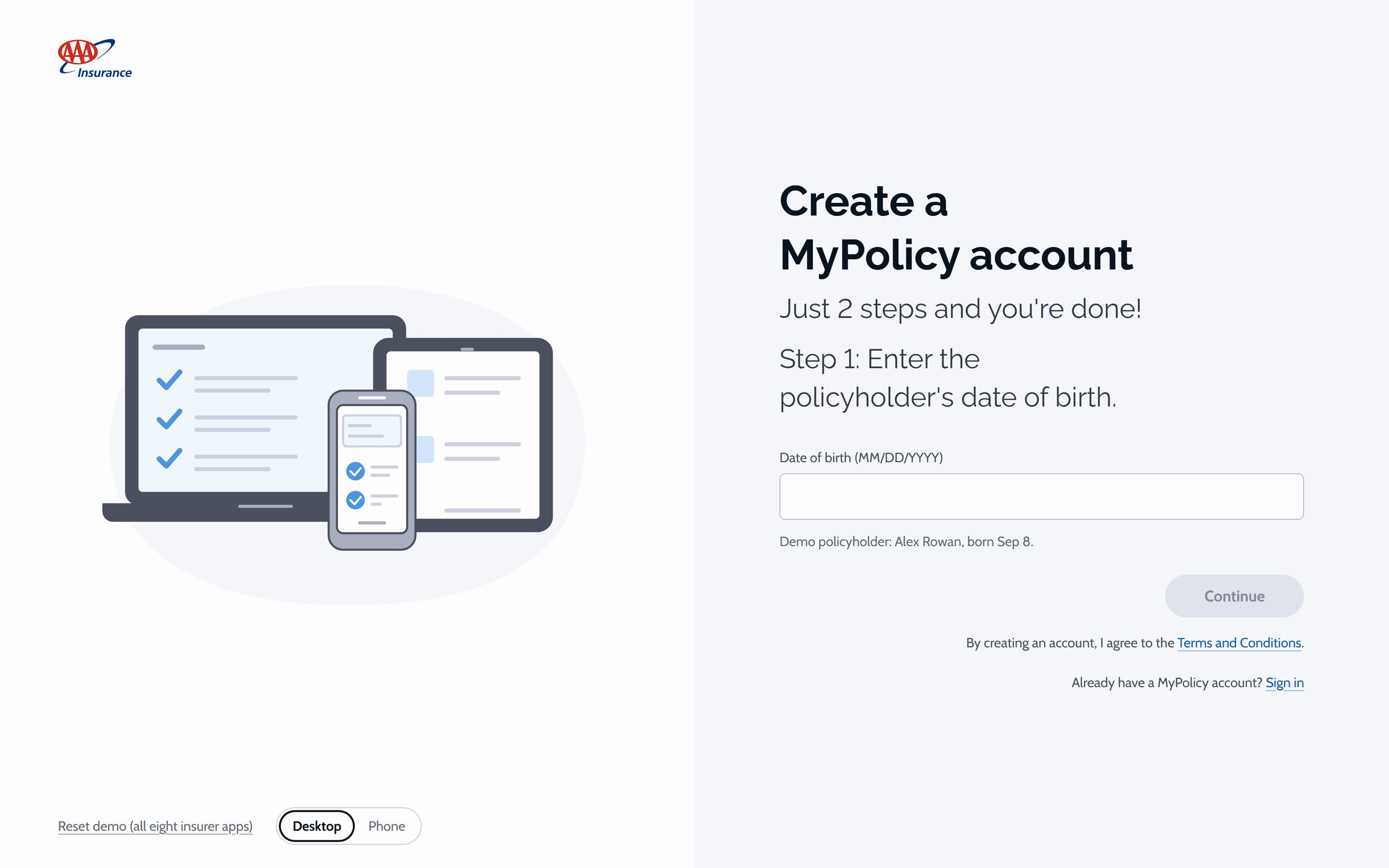
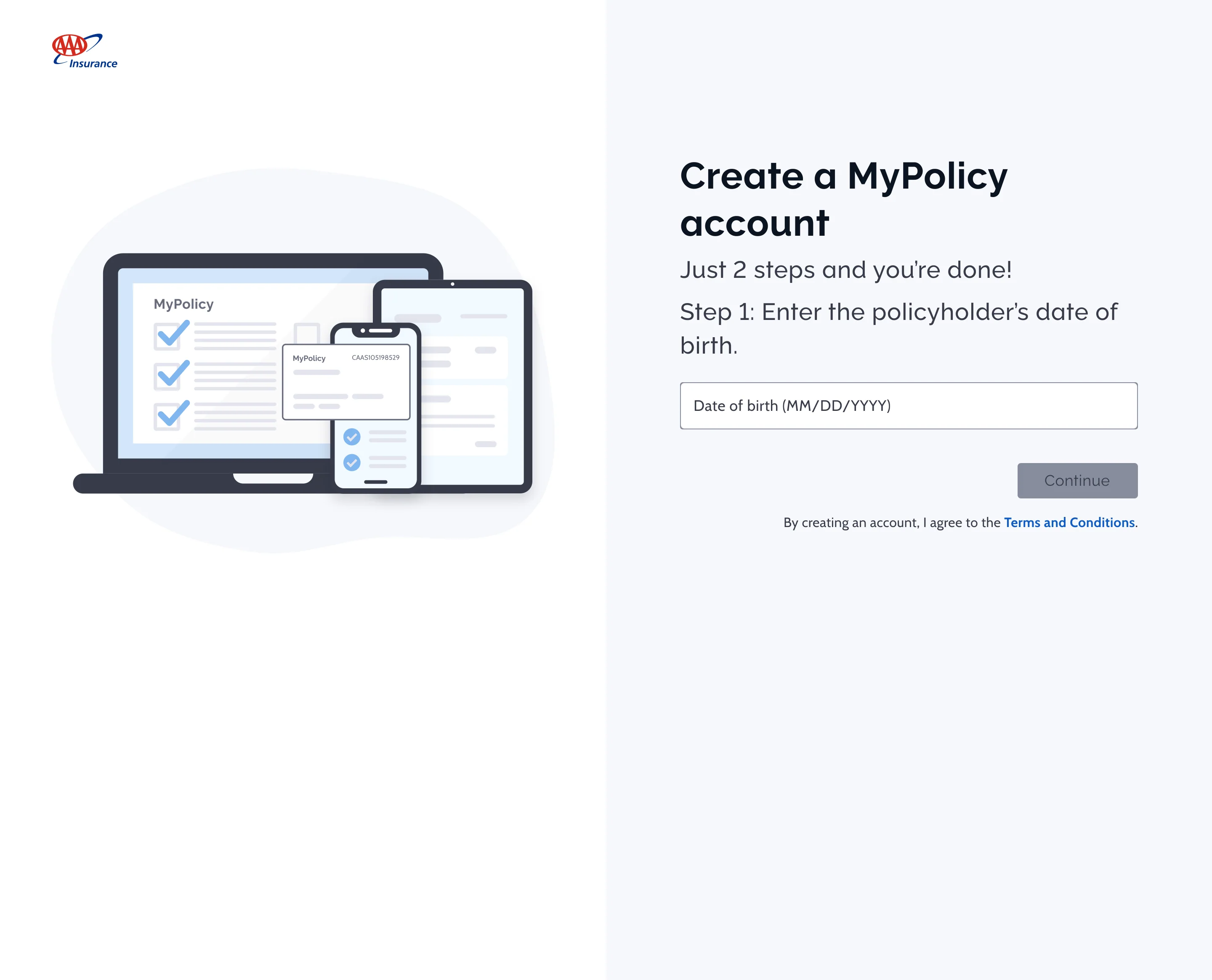
Two ways to an account A flow with two rows: the quick sign-up from a date of birth to a found policy, email and password, a six-digit code, and an all-set step opening the policies, and the standard sign-up below it through email, policy number, email confirmation and the code, joining the same all-set step, with a dashed link from the first step for when no policy matches. Two ways to an account Start from a date of birth; fall back to the standard sign-up. Quick Date of birth We found your policy ending Email + password Six-digit code You're all set, Alex. Policies, signed in 8263. no match: try the standard sign-up Standard Email, confirm, Policy number + Confirm the password driver's license policy's email Six-digit code 1 Start from one fact The quick way finds the policy from a date of birth alone. 2 A way for everyone Anyone it can't match gets the standard sign-up, one link away. 3 Ends inside Finishing opens the customer portal, signed in. 1 Two ways to an account. Two ways to an account, meeting at the same code and the same portal.Step 1: one field A split window: on the left a picture of a laptop, tablet and phone with ticks, a reset link and a Desktop or Phone switch; on the right the title Create a MyPolicy account, a date of birth field with a demo hint, a disabled Continue button, the terms line and a sign-in link. Step 1: one field The whole first screen asks for one date. Insurer Create a MyPolicy account Just 2 steps and you're done! Step 1: Enter the policyholder's date of birth. Date of birth (MM/DD/YYYY) Demo policyholder: Alex Rowan, born Sep 8. Continue By creating an account, I agree to the Terms and Conditions. Already have a MyPolicy account? Sign in Reset demo (all eight insurer apps) Desktop Phone 1 Two steps, said up front The promise is the headline, and the flow keeps it. 2 Checked as you type Once the date is complete, the policy is found and Continue lights up. 3 A hint to get through A quiet demo line says which birth date works. 2 Step 1: one field. The first screen: an account from a date of birth.Six boxes The same split window with a phone picture on the left and, on the right, the Verification code title, the masked email, six code boxes with three digits typed, links to go back or send a new code, and a small inbox toast at the bottom showing the code. Six boxes One code, six boxes, no button. Insurer Inbox · MyPolicy Your verification code is 778 075 Verification code We sent you a one-time code to help you sign up. We sent it to a*****@example.com, the email on your policy. Keep this page open to enter your code. If you close it, you'll need to start over with a new code. Enter the 6-digit code 4 7 1 Back Send a new code Reset demo (all eight insurer apps) Desktop Phone 1 No button to press The boxes check themselves when the sixth digit lands. 2 Which inbox The masked email keeps its domain, so you know where to look. 3 A simulated inbox The code arrives as a toast; no email is sent. 3 Six boxes. The one-time code, checked as soon as it's complete.Where the email screen goes Two options: a quick sign-up of four steps with a confirm-email step, struck through, and a quick sign-up of three steps with confirm email moved to the standard row only, circled as the choice. Does the quick sign-up confirm the policy's email first? Quick sign-up Quick sign-up Birth date Sign-in Confirm email Code Birth date Sign-in Code Standard sign-up only 3 steps + code Confirm email 2 steps + code Confirm the email first Send the code straight there The quick flow already knows the policy's email, so it sends the code straight there and stays two steps. 4 Where the email screen goes. Keeping the quick sign-up at two steps.A wrong code The code screen after a wrong entry: the six boxes are empty again with a cursor in the first, short shake strokes on either side, and the message that the code does not match outlined below, above the back and send a new code links. A wrong code state: wrong code The boxes reset; the reason stays on screen. Insurer Verification code We sent you a one-time code to help you sign up. Enter the 6-digit code That code doesn't match. Check the newest email. Back Send a new code Reset demo (all eight insurer apps) Desktop Phone 1 Clear, but keep the reason The boxes empty and focus returns to the first; the message stays. 2 A fresh code Send a new code replaces the old one in the inbox. 5 A wrong code. A wrong code: start again without losing why.Mockups
1/4 Simplified Registration Flow Its 4 mockups, in order:
Simplified Registration Flow
Organic Registration Flow
Login (via Desktop)
One-Time Verification Code (via Email)